
How to Use ChatGPT for Gmail (Step-by-step)
This guide shows how to summarize email threads, generate context-aware replies, improve a rough draft, and translate messages—directly inside Gmail.
- Install the extension (Chrome Web Store link is a placeholder for now).
- Open Gmail and click AI Reply.
- Set your email in Settings and click Activate.
- Generate a Summary, then generate a Reply or improve your draft.
1) Open the assistant in Gmail
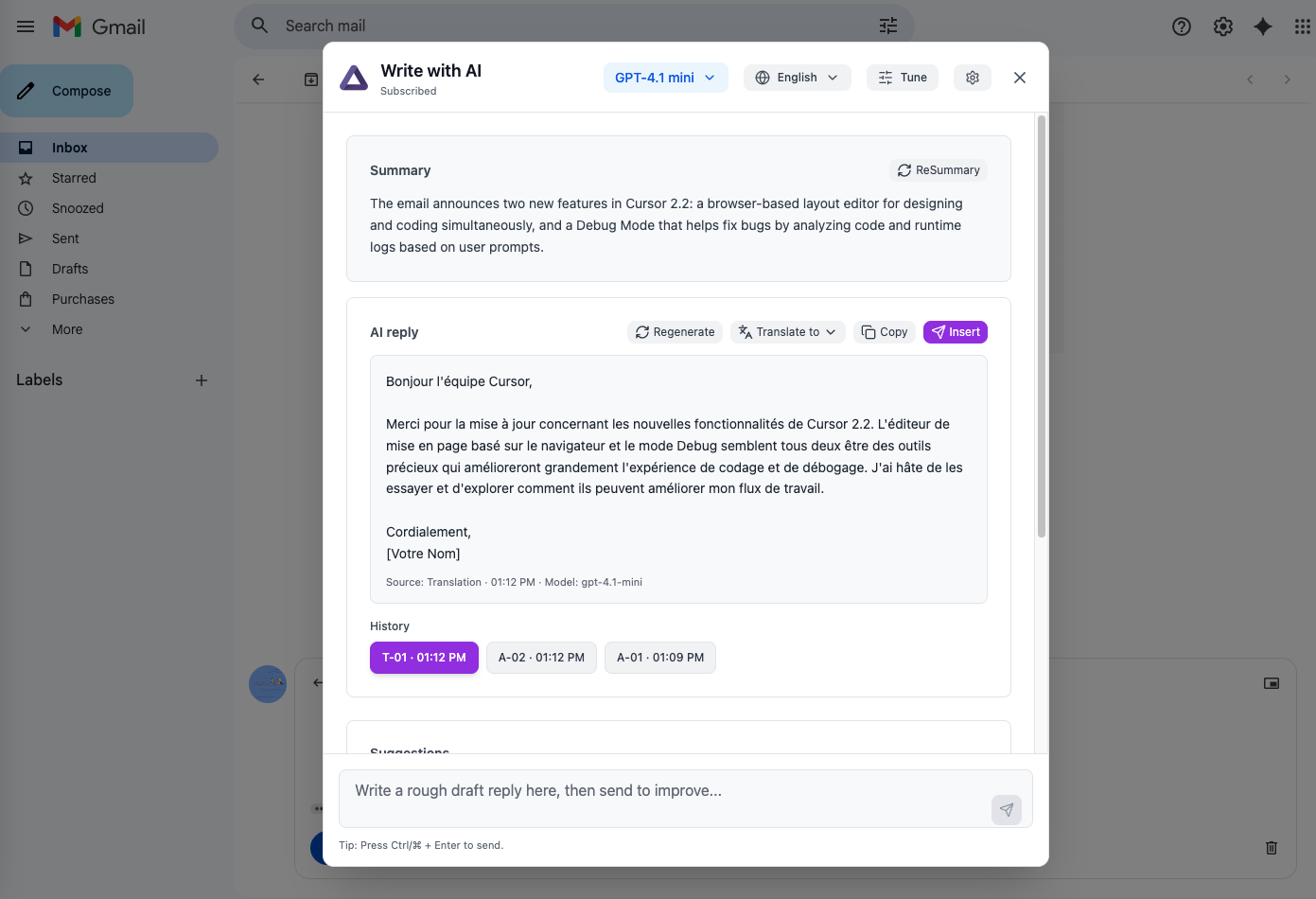
In Gmail, you’ll see an AI Reply entry in the toolbar. Click it to open the assistant overlay.
2) Generate a Summary
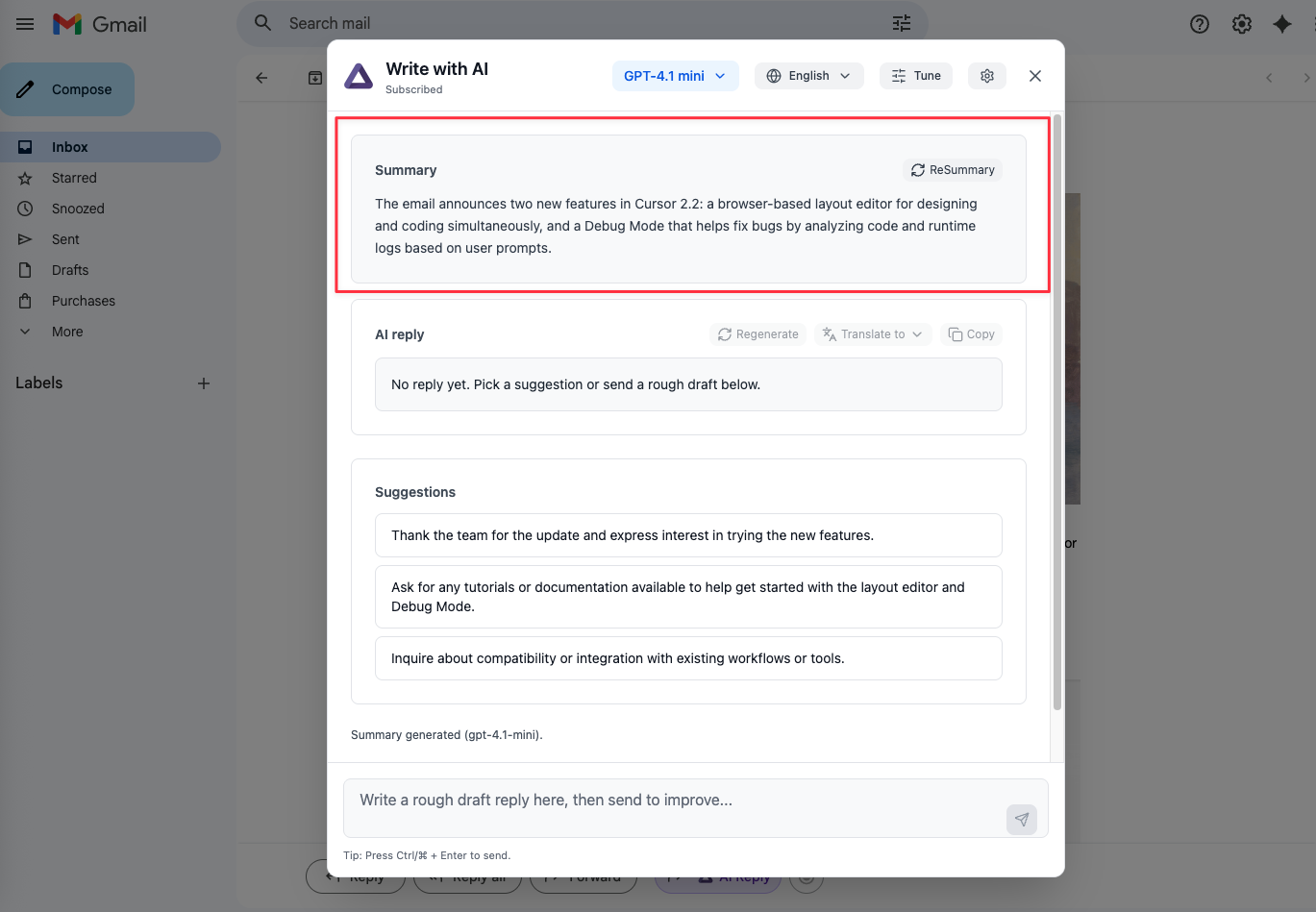
The Summary gives you a fast understanding of the email context and suggestions for reply intent. If you switch language or the email content changes, you can re-run the summary.
3) Generate a Reply (or improve your draft)
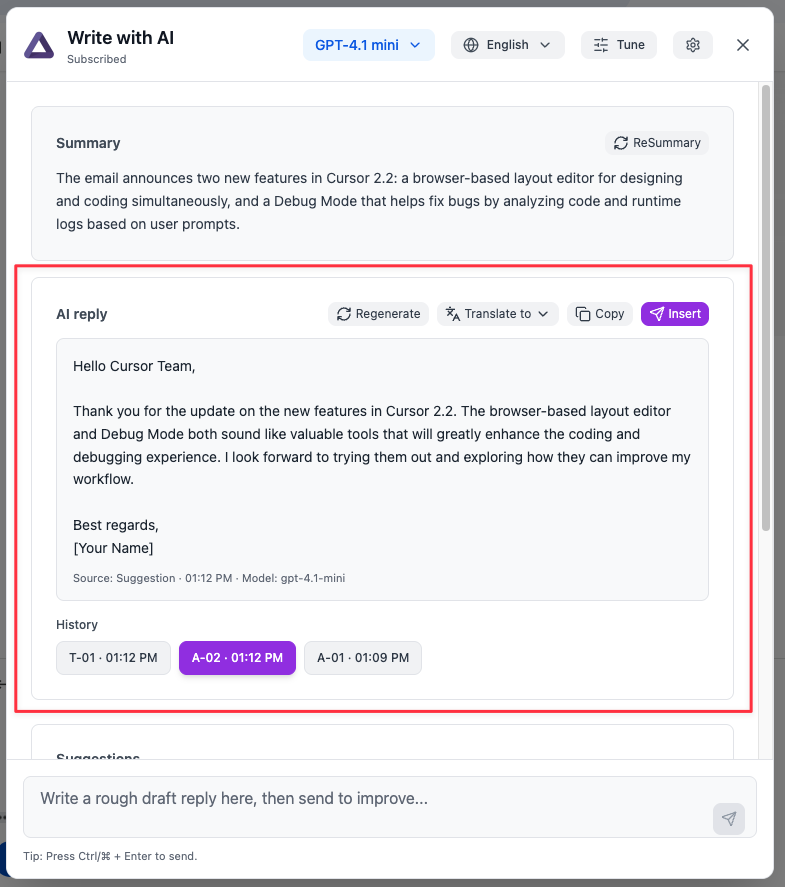
You can either click a suggestion or write a rough draft in the input box. The AI will generate a polished email reply with a natural greeting and sign-off.
4) Use Tune Up to control style
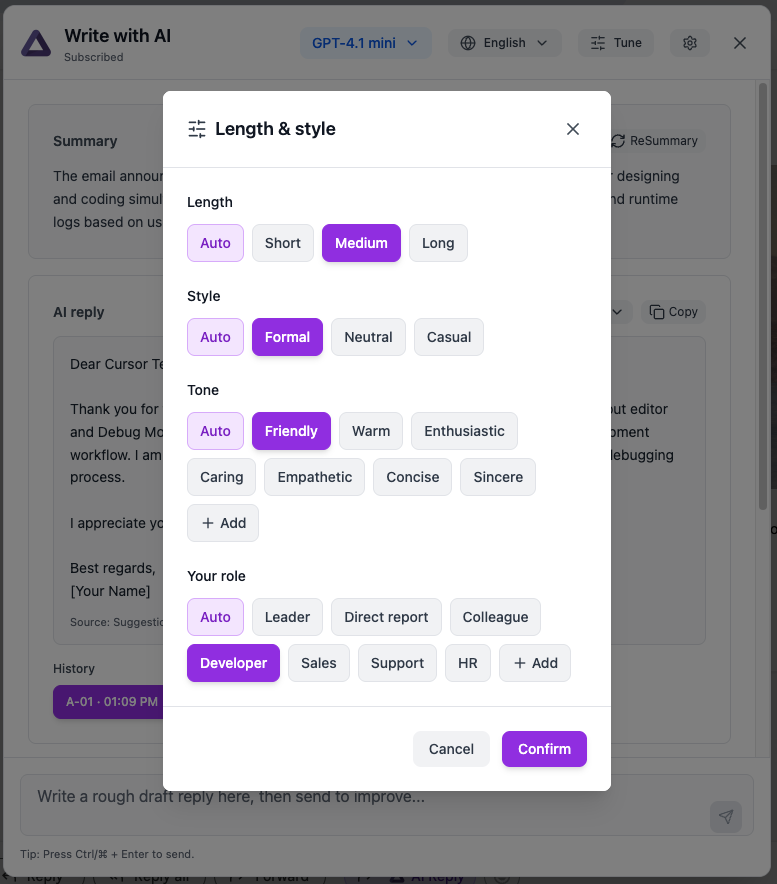
Tune Up lets you adjust length, style, tone, and role. This is useful for consistent outreach, customer support replies, or internal updates.
5) Translate, Copy, or Insert
Once you have a reply, you can translate it to another language, copy it, or insert it into the Gmail draft editor (when Reply is open).
Copy the reply with one click.
Insert is available when the Gmail reply editor is open.